Registering, Updating, or Deleting DNS Records in/from a Zone of the IIJ Managed DNS Server
This section describes how to register and update DNS records in, and delete DNS records from a zone of the IIJ Managed DNS Server.
[ Note ]
When you use the Managed DNS Server as a Secondary Name Server, register, update, or delete DNS records on your primary DNS server.
1. Log in to the control panel for the IIJ DNS Platform Service. Refer to "Logging In" for more information.
2. Select a target contract from the IIJ Managed DNS Service list.
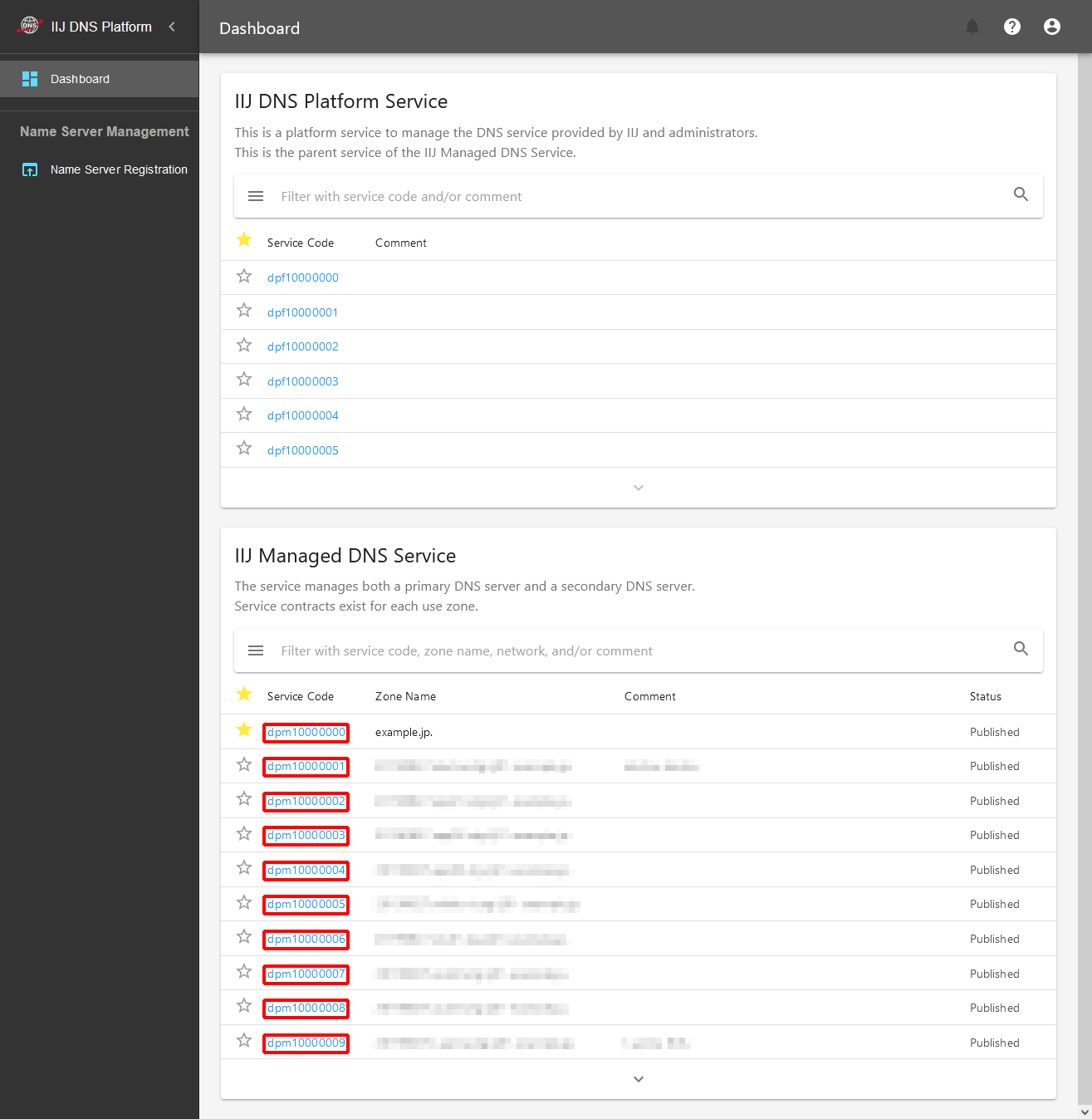
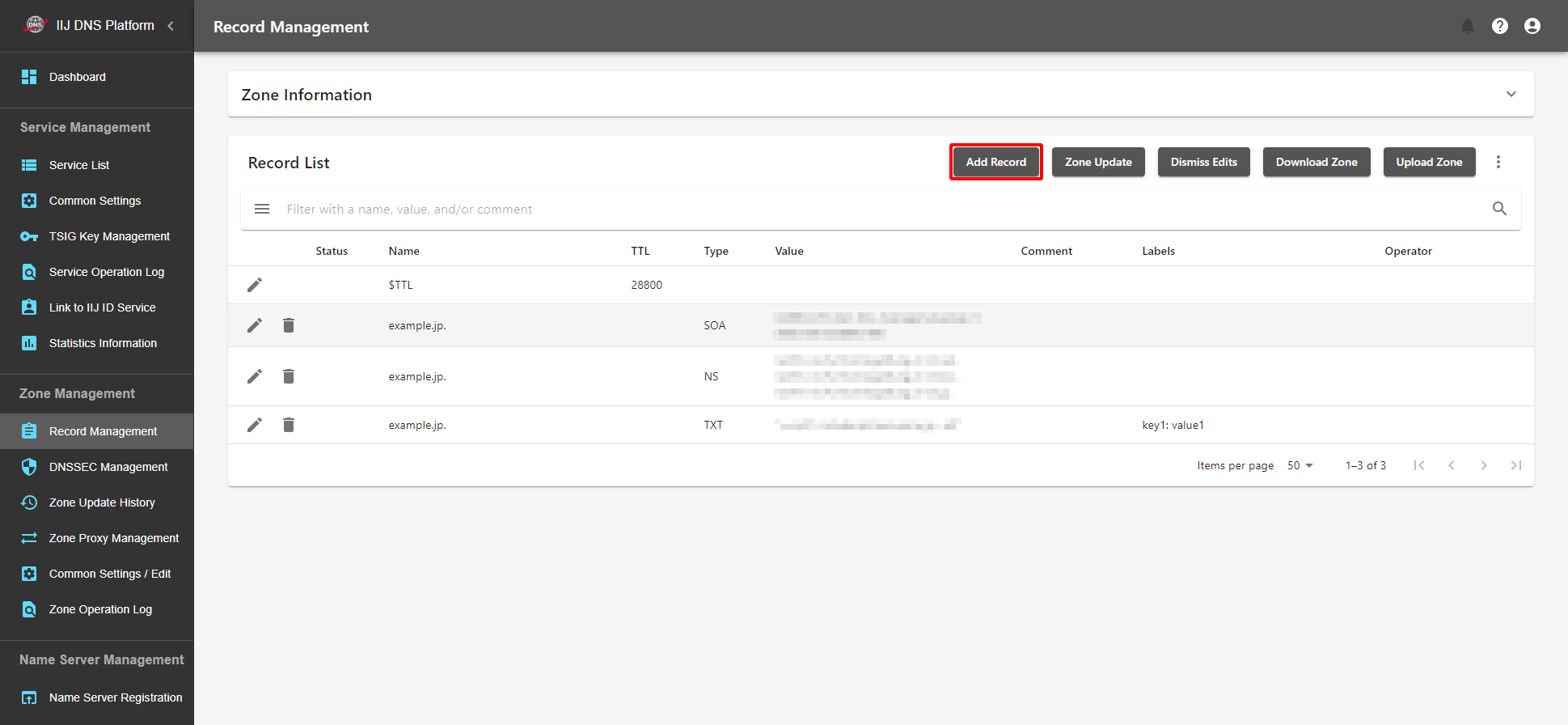
3. On the "Record Management" screen, add, update, or delete a record, and then reflect the change to the DNS server as shown below. Refer to "Record Management" for more information on the Record Management screen.
When Adding a Record
- Click "Add Record" at the top of the Record List.
- Enter required items on the "Register Record to be Added" screen. Refer to "DNS Record Registration Rules" for more information on record registration rules.
The entered contents on the following screen are those for the description format "example.jp. 28800 IN ANAME www.example.jp."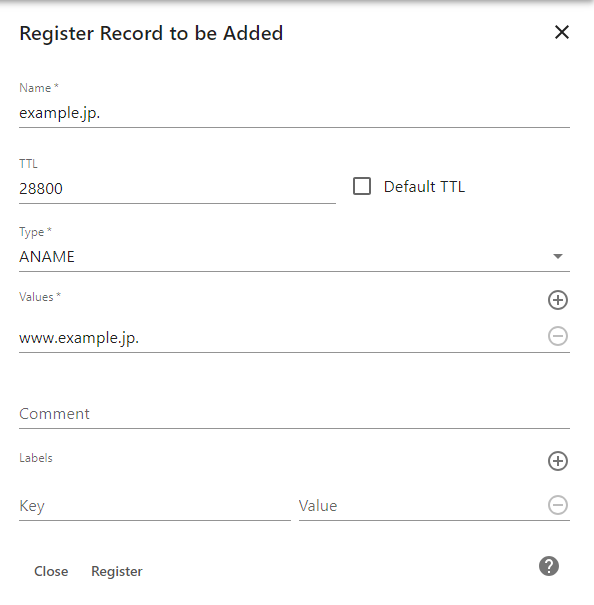
- Click "Register."

- Check the information added in the Record List and confirm that Status of the record is "TBA."
Click "Zone Update" at the upper right of the screen to reflect the edited content to the DNS server.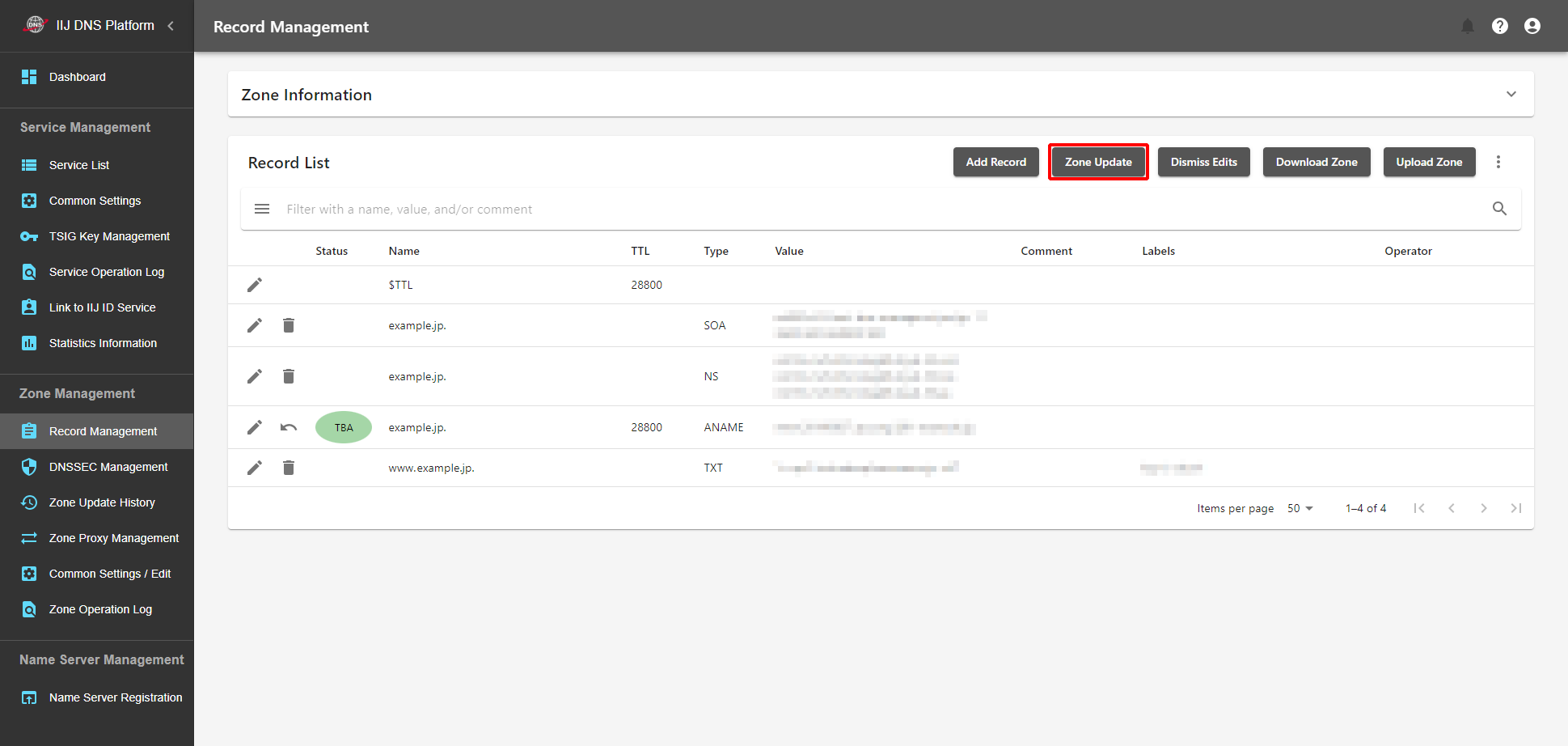
The edited content is reflected to the DNS server in several minutes.
When Updating an Existing Record
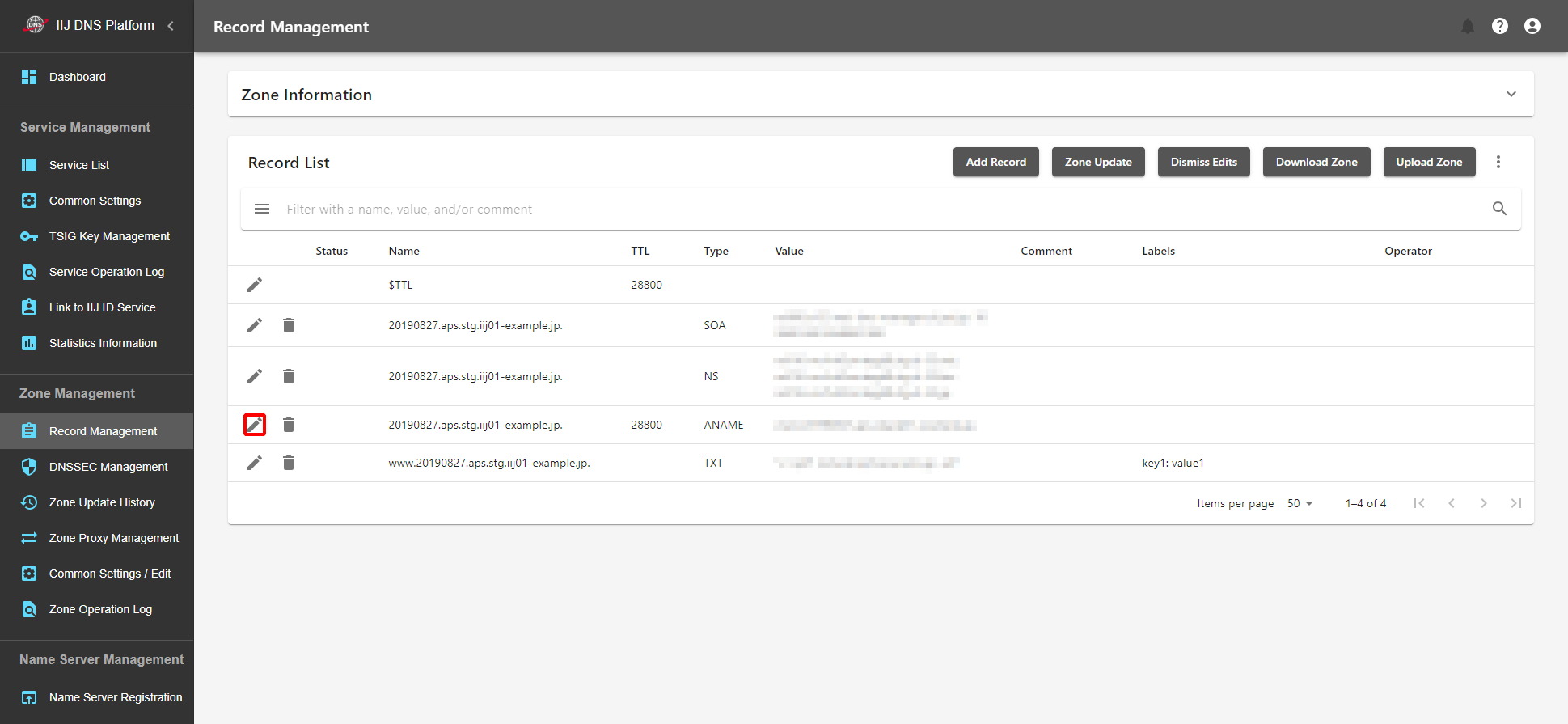
- Click "Edit (pencil mark)" of the record to edit in the Record List.
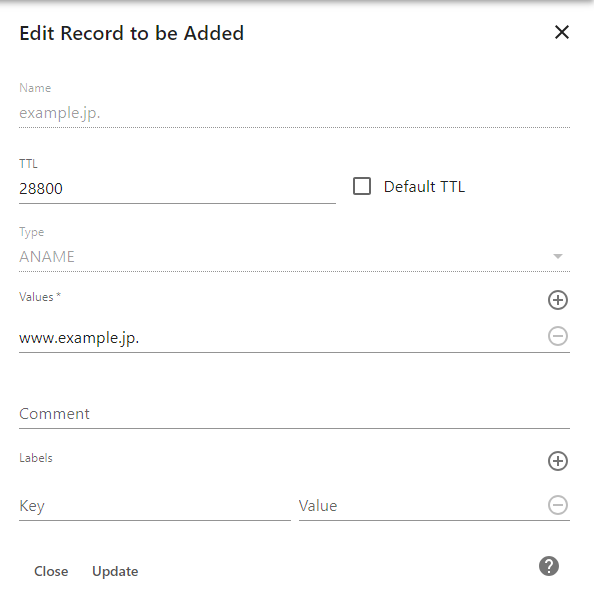
- Change the information of the record on the "Edit Records" screen.
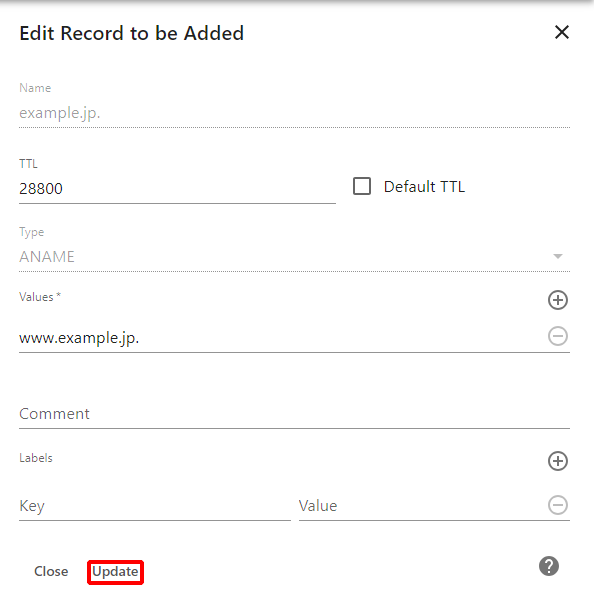
- Click "Update."
Check the information updated in the Record List and confirm that Status of the record is "TBU."
Click "Zone Update" at the upper right of the screen to reflect the edited content to the DNS server.
The edited content is reflected to the DNS server in several minutes.
When Deleting an Existing Record
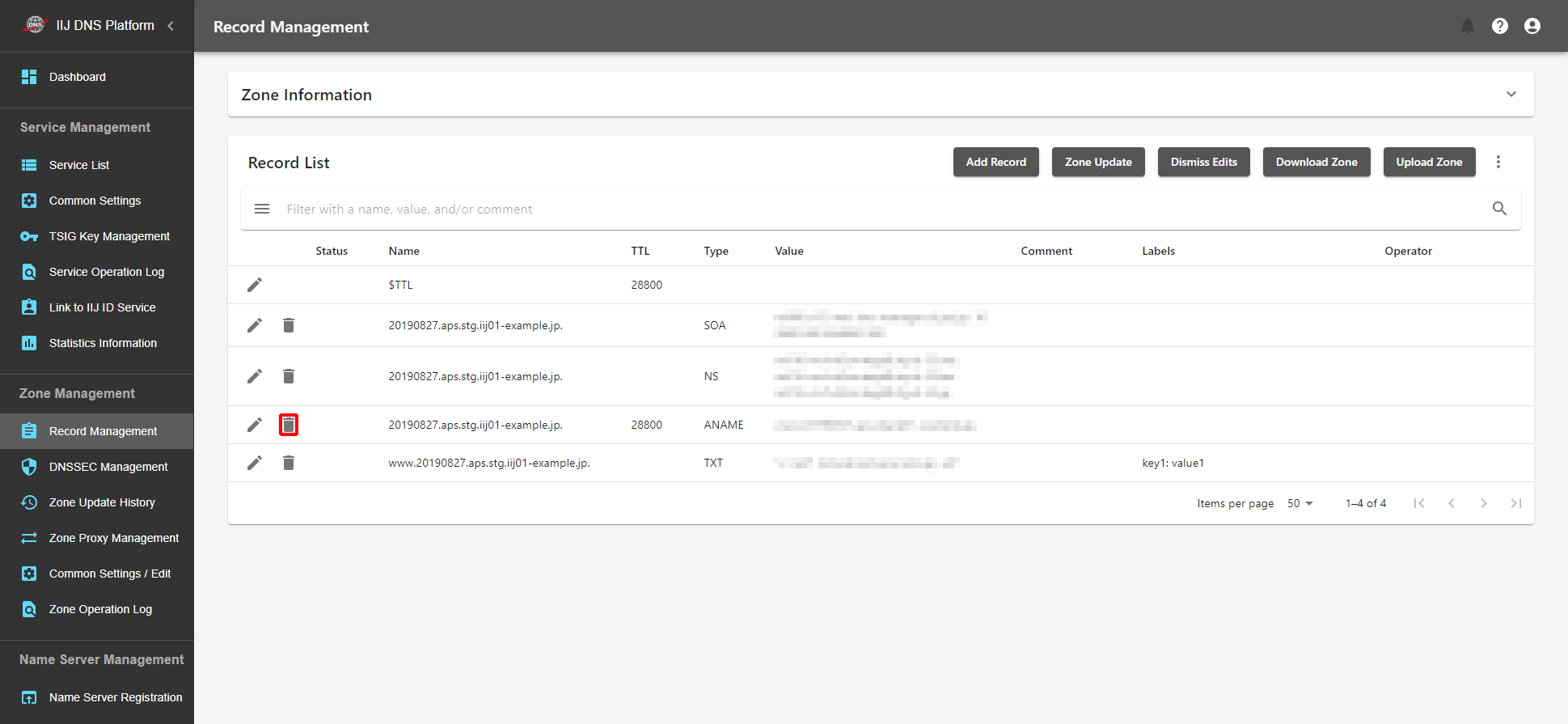
- Click "Delete (Trash mark)" of the record to delete in the Record List.
- On the "Update Record to be Deleted" screen, confirm that the record is the one you want to delete.

- Click "Update to Record to be Deleted."

- Check the information of the record to delete in the Record List and confirm that Status of the record is "TBD."
Click "Zone Update" at the upper right of the screen to reflect the edited content to the DNS server.
The edited content is reflected to the DNS server in several minutes.