How to Change the Monitoring Target Server
When adding or changing a host name or IP address of the monitoring target, you need to make the actions shown below to change response results of the LB domain for traffic control settings.
[ Note ]
- IIJ does not recommend the method for rewriting the RDATA value directly.
- Because the monitoring status (Live/Ready) of the change destination site cannot be checked in advance when rewriting the RDATA value directly, there is a possibility that the site can be accidentally changed to another site, such as a Sorry page, if the change destination site is down.
- Although you have a method for changing sites at the endpoint in the same site, this page shows you a safer site changing method.
[ Reference ]
If you have a concern about an unexpected site change during the operation shown below, enable "Remove Manually" and "Restore Manually" in "2. Add an endpoint" in "Preparation for a change" before the change.
Procedure for Changing Application Rules
The following shows a procedure for adding a new site and changing application rules.
1. Prepare for a change.
| Preparation for a change | |||
|---|---|---|---|
| 1. Add a new site | Add a site to be a change destination in Site Management. |
||
| ▼ | |||
| 2. Add an endpoint | Add an endpoint on the new site to set the monitoring destination target and RDATA to be returned by the LB domain name. |
||
▼ |
|||
| 3. Add monitoring settings | Add a monitoring type and monitoring parameter to set the method of alive monitoring endpoint monitoring targets. Monitoring Management |
||
| ▼ | |||
| 4. Link the monitoring settings | Link the monitoring settings to the new endpoint and enable the monitoring settings. You can check the status specified for the monitoring target in "Operate Monitoring." |
||
| ▼ | |||
| 5. Enable the endpoint | Enable "Enable Endpoint" for the new endpoint, and then confirm that "Ready Status" has become "UP." "UP" indicates that the endpoint is enabled. Site Management > Set Endpoint *If Restore Manually is enabled, you need to click "Failback." Traffic Control Statuses |
||
| ▼ | |||
| 6. Add rules | Add a rule to be a change destination in Rule Management. |
||
| ▼ | |||
| 7. Add entry methods | Add methods for each inquiry type in Rule Management. Rule Management > Entry Methods |
||
▼ |
|||
| For the active/active configuration | For the active/standby configuration |
||
| ▼ | ▼ |
||
| 8. Add the Finalizer Method "exit_site" | Add the Finalizer method "exit_site" to Entry Methods and select a new site. Because load distribution is performed with respect to multiple sites, you need to add multiple endpoints in the new site. Carry out steps 2 to 5 again to create an endpoint for load distribution (active), and then enable it. |
8. Add the Condition Method "failover" |
Add the Condition Method "failover" to Entry Methods to branch the process. |
| ▼ | |||
9. Add the Finalizer Method "exit_site" |
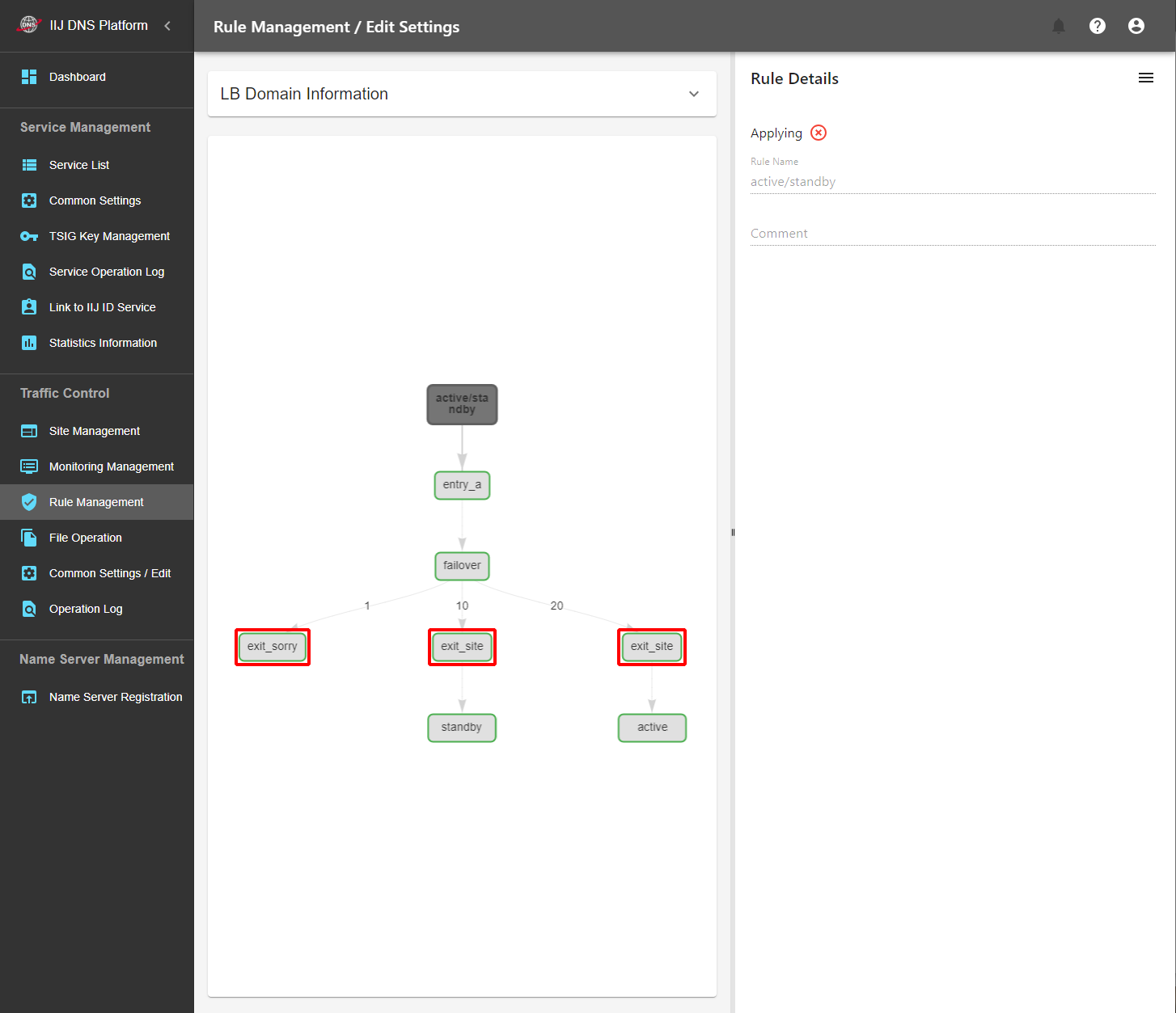
To add a method to be the change destination, add "exit_site" to the Condition Method "failover" and select a new site Make the following actions to display the new site (standby side) of the change destination when monitoring to the new site (active side) fails:
|
||
[ Reference ]Example of the setting of "exit_site" and "exit_sorry" in Rule Management
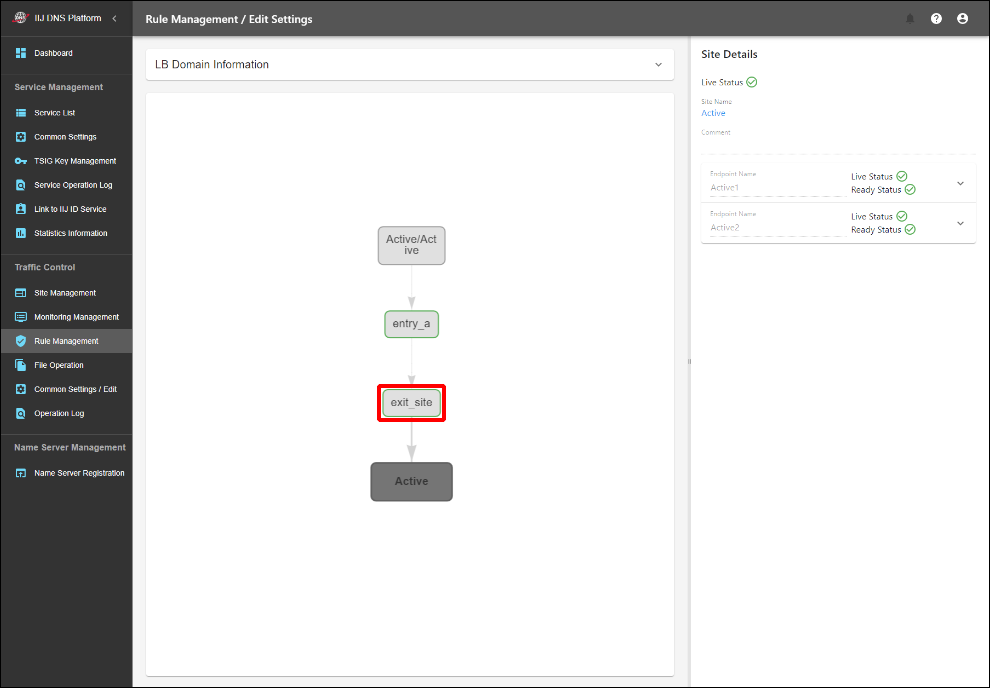
To display the websites of the load distribution destination and the change destination, configure the settings as shown below in "Rule Management."
Configuration Examples of Traffic Control
For the active/active configuration
For the active/standby configuration
About the Sorry page (active/active configuration and active/standby configuration)
By adding the Finalizer Method "exit_sorry" to the Condition Method "failover" as needed, the Sorry page (website that informs the relevant host of an access failure) provided by IIJ can be displayed.
Set the priority of "exit_sorry" to be lower than that of other Finalizer Methods.
2. Carry out the change
| Implementation of the change | |
|---|---|
|
1. Change application rules |
Execute "Change Application Rules" from "≡" in "Rule Details" which has been added in "Preparation for a change" to apply the rule created in "Preparation for a change." |
| ▼ | |
| 2. Confirm the RDATA response | The RDATA value can be checked by performing name resolution of the host name linked to the LB domain name. If an unintentional response result is obtained, you can restore it by performing "Change Application Rules" for the old rule from "Rule Management." |
| ▼ | |
| 3. Delete the old site | Delete the old site unless you need its setting. |
| ▼ | |
| 4. Delete the old rule | Delete the old rule unless you need its setting. |